


FamilyKeeper Parental Control
3.1150.00 Reviews
App Specs
- Version
- 1.12.2
- Updated On
- License
- Free
- Downloads
- 100,000+
- Developer
- Reason Labs
- Categories
- Parenting
- Platform
- Android
Screenshots

 Analysis by AppCompare
Before installing any parental-control app, I like to decide what problem I actually want it to solve. With FamilyKeeper, the practical starting point is a mix of screen-time oversight, app controls and location awareness, rather than a promise that one dashboard can replace a conversation with your child. That distinction matters: the app is most useful when I treat it as a way to support clear family rules, not as a secret substitute for trust.
FamilyKeeper is a free parenting app from Reason Labs, with optional in-app purchases priced from $9.99 to $119.99 per item. It has an average rating of 3.1 from around 250 ratings, which is a reason to approach it with realistic expectations and test the parts that matter to your household. It is rated for everyone, has passed 100,000 installs, and its current version is 1.12.2 for Android 6.0 and newer.
What to expect from a family-control app
The first thing I would expect from FamilyKeeper is a parent-facing view of several everyday concerns: how much time a child spends on a device, which apps need limits, and where the child is when a location check is useful. Those jobs are related, but they are not interchangeable. A location view cannot tell you whether a child is comfortable online, and an app limit cannot teach them how to handle a troubling message.
That is why I would pick one immediate goal before setup. For a younger child, it might be making bedtime less negotiable by agreeing on a screen-free period. For an older child, it could be getting a clearer picture of app use while leaving room for independence. Starting with a narrow, understandable rule makes it easier to judge whether the controls are helping instead of turning the first week into a pile of restrictions.
Compared with relying only on a phone’s built-in screen-time tools, a dedicated family app can bring several parental tasks into one routine. The trade-off is that a separate service adds another account and setup process, and features should not be assumed to work identically across every device or family arrangement. If all you need is a basic daily limit on one child’s device, the controls already on that device may be simpler. FamilyKeeper makes more sense when you want to combine time, app and location oversight in a parent-focused workflow.
Start with one child profile and one clear rule
When I set up a parental-control tool, I would first make sure I am working with the correct child profile and device. That sounds obvious, but it is an easy place to create confusion in a household with siblings: a sensible restriction attached to the wrong profile is still the wrong restriction. I would check the profile name before adjusting a limit, then explain to the child what the rule is meant to do.
For a first meaningful test, choose one change that is easy to notice. A screen-free period around homework or bedtime is a better starting point than trying to control every app at once. After the first day, ask whether the rule fit the family’s actual routine. If it interrupted a necessary task or created an avoidable argument, adjust the plan before adding more controls.
Worth Reading Before You Choose

EA SPORTS FC Mobile 26 Is a Bigger Football Game, but It Takes Time

Flipboard Shows What News Apps Must Do Beyond the Feed

Switching to Android Auto Means Rethinking Your Driving Routine

Google Calendar Makes a Crowded Week Easier to Manage

Ludo King Makes the Most of the Minutes Between Plans

Baby Panda World Brings Quick Play to Modern Phones, but Its Game Library Feels Busy
That small trial also helps answer a practical question: does the app’s approach match the way your family uses devices? A parent who wants a calm overview may be satisfied with a single limit and occasional checks. Someone expecting a detailed, always-accurate account of every online interaction may find that any parental tool needs more supervision and conversation than the marketing language suggests.
FamilyKeeper is designed for parents who want practical oversight without building a complicated system from scratch. I would be cautious about treating any monitoring alert as proof that something serious has happened. Alerts are prompts to look closer, not verdicts; context matters, and a child may need a private, supportive conversation rather than an immediate punishment.
Putting FamilyKeeper into a realistic routine
Let’s face it, there are a ton of parental control apps out there, but FamilyKeeper Parental Control has some unique features that caught my attention. The app is designed to provide real-time monitoring and alerts that keep you informed about your child’s online activities. What I found particularly nifty is its ability to send alerts about potentially risky behavior or content. It’s like having a digital babysitter that never sleeps!
Setting Up FamilyKeeper
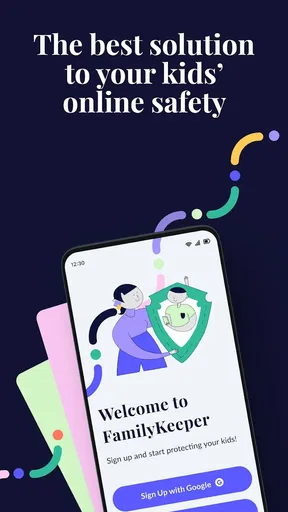
Getting started with FamilyKeeper is a breeze. You’ll begin by downloading the app from the App Store or Google Play. Once installed, the setup is straightforward. You’ll need to create profiles for each child, which is super intuitive. The app guides you through each step, ensuring you don’t miss a beat.
One thing I appreciated was the flexible customization. You can adjust settings for each child based on their age and maturity, which means no one-size-fits-all restrictions. This flexibility allows you to tailor the digital experience to fit your family’s unique needs.
After profiles are in place, I would avoid turning on every control immediately. First, make sure each child is associated with the right device and that you understand which settings apply to that profile. Then test one restriction while you are nearby, so you can see how it affects the child’s normal use. That quick check can prevent a frustrating discovery later, such as a rule interfering with a routine you meant to leave untouched.
A realistic first-week routine might look like this: agree on a screen-free stretch during dinner, use the app’s time-management controls to support that agreement, and check in together after a few days. If your child needs a device for a school task, make the exception part of the conversation rather than assuming a limit will understand the situation. The useful outcome is not simply a blocked screen; it is a rule the family can explain and follow consistently.
Features You’ll Love
FamilyKeeper offers a plethora of features that make it a robust tool for digital parenting. Here are some highlights:
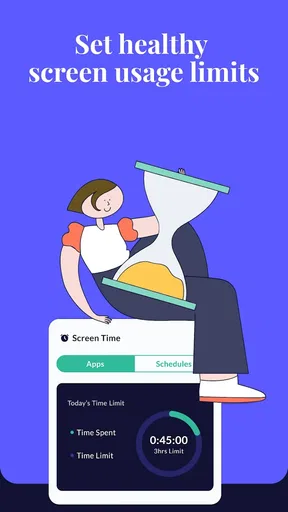
- Screen Time Management: You can set daily limits and even schedule screen-free times. Perfect for ensuring the kids don’t turn into screen zombies!
- App Management: This feature allows you to block or limit the use of certain apps, giving you control over what your child can access.
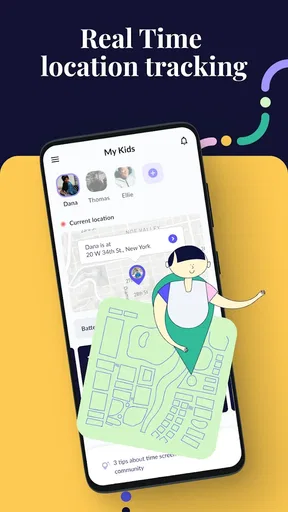
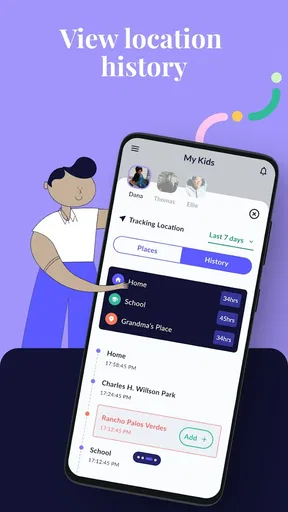
- Location Tracking: Real-time GPS tracking keeps you in the loop about your child’s whereabouts. It’s peace of mind in app form.
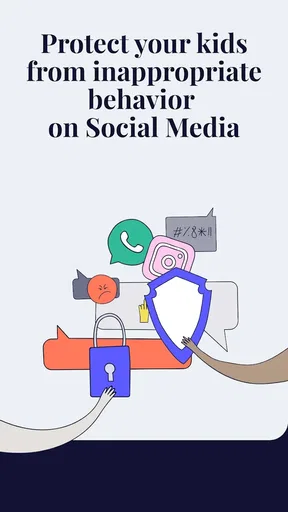
- Social Media Monitoring: With FamilyKeeper, you can keep tabs on your child’s social media interactions. The app sends alerts if any suspicious activity or risky content is detected.
These tools work best when each has a defined purpose. App blocking is useful when there is a particular app you have discussed and decided to restrict; using it as a broad punishment can make the reason for the rule harder to understand. Location tracking is better treated as a check-in aid for agreed situations, such as confirming a child has reached a destination, rather than something to refresh constantly. That keeps the feature from becoming a substitute for a normal message or call.
For families trying social-media alerts, I would use them as a reason to ask an open question, not as a basis for assuming the worst. A notification can point to something worth discussing, but the context may be missing. Talk with your child about what kinds of situations should prompt them to ask for help, and explain which alerts you expect to follow up on. That approach gives the monitoring a clearer boundary and can make it feel less like surveillance.
Using FamilyKeeper Daily
What makes FamilyKeeper particularly user-friendly is its daily usability. The user interface is clean and intuitive, which means you won’t be fumbling around trying to find features. I found the dashboard to be a lifesaver, offering a snapshot of everything I needed to know about my child’s digital interactions.
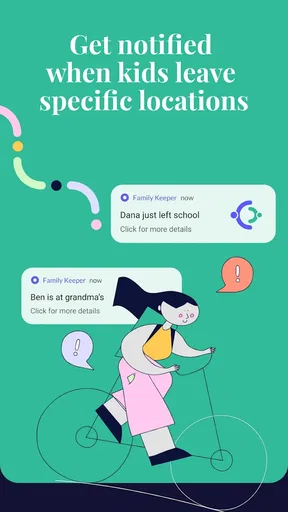
The app’s real-time alerts are a game-changer. I loved not having to constantly check in on my child’s activities because FamilyKeeper did the heavy lifting for me. It sends notifications directly to my phone, so I’m always in the loop without being glued to my screen.
One practical way to keep those notifications useful is to decide when you will act on them. If every alert leads to an immediate interruption, both parent and child can end up reacting to the phone instead of handling the underlying issue. I would review a notification when there is time to understand it, then follow up calmly if it needs attention. For urgent location concerns, use ordinary judgment and direct contact rather than relying on a screen alone.
It is also worth reviewing rules when a child’s routine changes. A limit that made sense during a school week may be awkward on a weekend, and an app restriction can become outdated as responsibilities change. Rather than leaving settings untouched indefinitely, I would make occasional adjustments with the child involved. That keeps the controls aligned with their current needs and gives them a chance to show they can handle more independence.
Common points of confusion and limitations
While FamilyKeeper is impressive, no app is without its flaws. One thing I noticed is that the location tracking can occasionally be a bit off, especially in areas with poor signal. It’s something to keep in mind if you rely heavily on this feature.
The app also requires an internet connection to function optimally, which isn’t always feasible if you’re out and about in remote areas. However, these are minor issues in the grand scheme of things and don’t detract significantly from the app’s overall functionality.
That limitation changes how I would use location information: as a helpful indication, not a guarantee of a child’s exact position at every moment. If a location appears unexpected, I would check whether the child can be reached and consider the signal conditions before drawing conclusions. Families who need dependable location coordination as their main purpose may prefer a service chosen specifically for that need, then test its performance in the places where they actually travel.
Another point to keep in mind is that parental controls are not a replacement for explaining what the settings do. A child who does not understand why an app is blocked may try to work around the restriction or simply lose trust. I would tell them which controls are active, what kinds of alerts I may receive, and how they can ask for a change. That transparency is especially important for older children, whose needs for privacy and autonomy deserve more weight.
The free download also should not be confused with every possible feature being free. FamilyKeeper includes in-app purchases, with individual items ranging from $9.99 to $119.99. Before relying on a feature as part of your routine, I would review the purchase screen carefully and make sure the cost and terms suit your family. If you only need basic controls, compare what you can use without paying against the built-in settings on your child’s device.
Its 3.1 average from around 250 ratings suggests that experiences are mixed, so I would treat the first few days as a practical evaluation rather than assume the app will fit every household. Check whether the controls behave as expected on your devices, whether alerts are useful rather than distracting, and whether the child profile setup makes sense for your family. A short, deliberate trial is more informative than enabling every feature and hoping the app will manage the details by itself.
Who is likely to benefit—and who may prefer another approach
I can see FamilyKeeper suiting parents who want several kinds of oversight gathered around their children’s device use, especially when the household needs a consistent way to discuss time limits, app access and location check-ins. It may also help a parent who wants a prompt to start a conversation about a potentially concerning online situation. The value is less about watching every moment and more about having a structure for rules and follow-up.
It is probably not the right choice for a parent who wants invisible monitoring, guaranteed location precision, or a substitute for talking with a child. It may also be unnecessary if your only goal is to set a basic bedtime limit on a single device; built-in controls can be easier to maintain and avoid adding another app. If your family relies on detailed controls across a complicated mix of devices, compare compatibility and behavior in your own setup before making it the center of your routine.
For a first-time user, the most reassuring measure of success is modest: one agreed rule works as intended, the child knows what it does, and the parent can find the relevant information without checking constantly. If those pieces fall into place, you can decide whether location tools or app restrictions add genuine value. If setup feels confusing or the alerts create more anxiety than clarity, it is reasonable to simplify the settings or choose a less involved option.
Final Thoughts
In the ever-evolving world of technology, keeping our kids safe online is more crucial than ever. FamilyKeeper Parental Control offers a comprehensive solution that addresses this need with a blend of user-friendly features and real-time insights. While it might not be perfect, it’s a solid choice for any parent looking to strike that delicate balance between protection and freedom for their kids.
If you’re ready to give FamilyKeeper a whirl, you can download it from the App Store or Google Play. It’s time to take control of the digital experience and ensure our kids can explore the online world safely and responsibly.
My advice is to begin with a conversation, choose one setting that addresses a real family need, and judge the result by whether it makes daily life clearer rather than more tense. FamilyKeeper can be a useful part of that plan, but the best parental-control setup is one your child understands and your family can revisit as circumstances change.
Pros
- User-friendly interface for easy navigation.
- Comprehensive monitoring features.
- Customizable screen time limits.
- Real-time location tracking.
- Supports multiple devices.
Cons
- Limited features in free version.
- Can drain battery quickly.
- Requires stable internet connection.
- Complex setup for non-tech-savvy users.
- Some features may lag occasionally.
FAQs for FamilyKeeper Parental Control
What are the key features of FamilyKeeper Parental Control?
FamilyKeeper Parental Control offers a variety of features to help parents monitor and manage their child’s online activities. Key features include location tracking, screen time management, app blocking, and real-time alerts for suspicious activities. It also provides insights into the child’s digital habits, allowing parents to make informed decisions about their online safety.
Is FamilyKeeper Parental Control compatible with both Android and iOS devices?
Yes, FamilyKeeper Parental Control is compatible with both Android and iOS devices. The app is designed to work seamlessly across different platforms, allowing parents to manage their child's online activities regardless of the device they are using. Make sure to check the app store for the latest compatibility updates.
How does FamilyKeeper ensure my child's data is protected?
FamilyKeeper takes data privacy seriously. The app uses advanced encryption methods to secure your child's data, ensuring that sensitive information remains private. Additionally, FamilyKeeper adheres to stringent privacy policies and complies with international data protection regulations to provide peace of mind for parents.
Can I customize the settings for each child individually?
Yes, FamilyKeeper allows parents to customize settings for each child individually. You can set different rules and restrictions based on the age and maturity level of each child, ensuring that the parental controls are tailored to their specific needs. This flexibility helps parents manage multiple children effectively.
What kind of alerts and notifications does FamilyKeeper provide?
FamilyKeeper provides a variety of alerts and notifications to keep parents informed about their child's online activities. These include alerts for attempted access to blocked apps or websites, unusual behavior patterns, and location changes. Parents receive these notifications in real-time, allowing for prompt intervention if necessary.


